Client Guide - Submitting Timesheets & Accessing the Portal
Contents
- Approving Timesheets Via Email
- Logging In & Accessing Your Account
- Approving Timesheets on the Portal
If you have any further questions, please contact customercare@talentia.group
Approving Timesheets Via Email
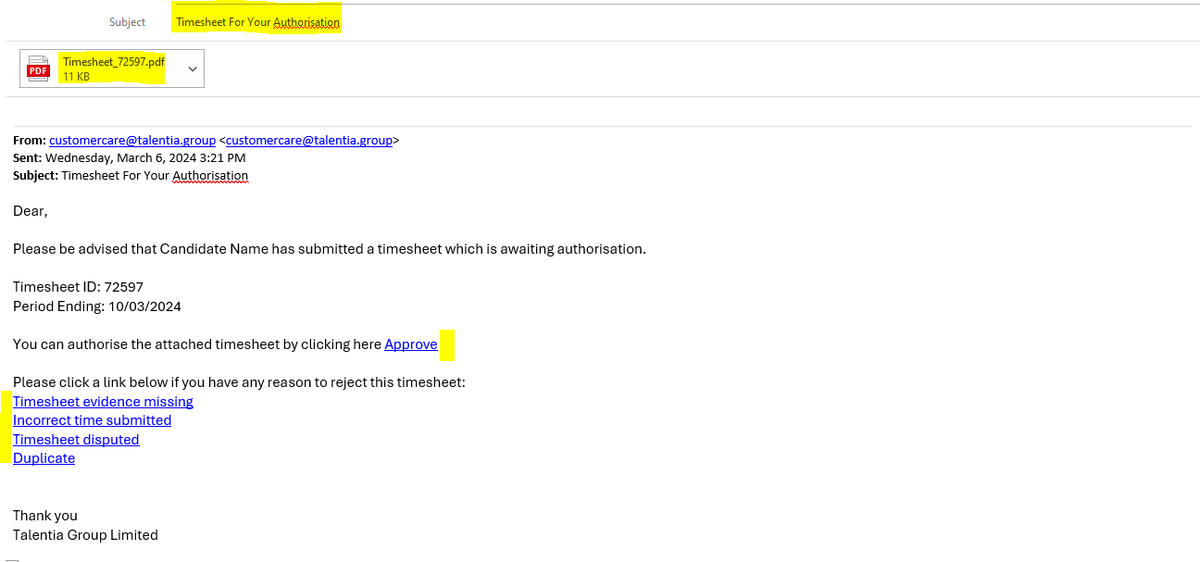
Check your email — look for an email titled "Timesheet For Your Authorisation" in your inbox. If you can't find it, check your junk folder. Please review the attached timesheet to ensure its accuracy.
Approval process — click the "approve" link highlighted in blue. Wait for the email to generate, then click "send" without adding any annotations. If the timesheet is incorrect, use the highlighted link in the email to select the appropriate option.

Logging In & Accessing Your Account
Username
Find your username in the "Welcome To InTime" email. Copy it for use when logging in.
Password
Search for the "InTime password" email in your inbox. Copy the password for logging in.
Login Link
Click the login link in the "Welcome To InTime" email, or go directly to: https://timesheets.talentia.group/
Creating a New Password
Follow the on-screen instructions to create a new password.
Note: Your welcome email, password, and username will be sent in separate emails. Check your junk inbox if you haven't received them.
Approving Timesheets on the Portal
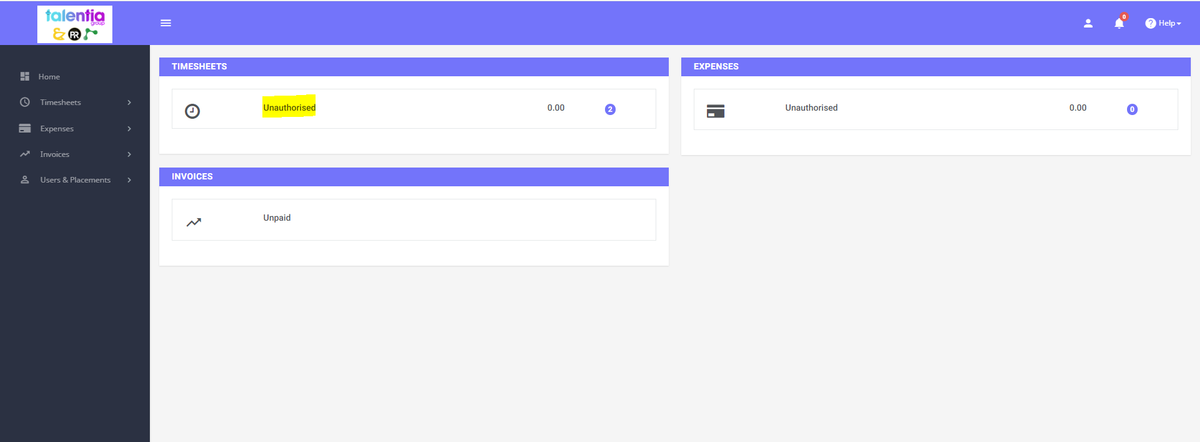
Once logged in, click the "unauthorised timesheet" tab (see Image 3).
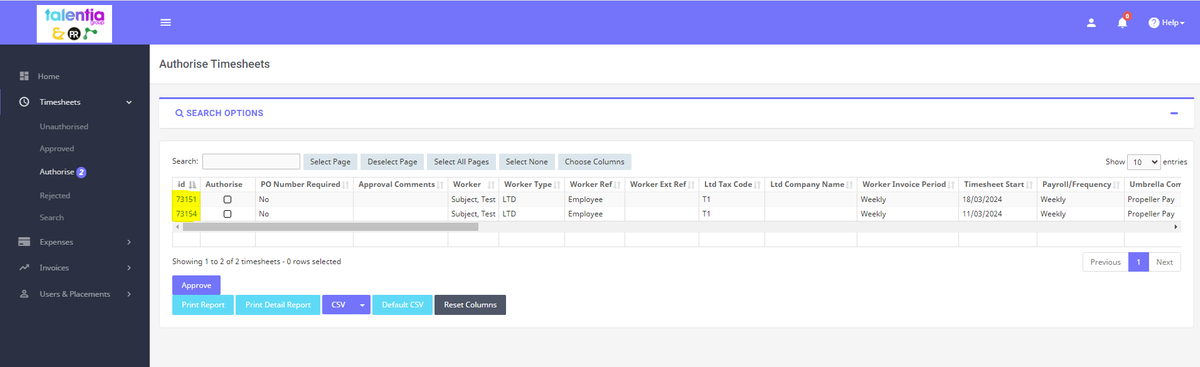
Scroll down to approve or reject. You can also leave comments regarding the timesheet.
For expenses, follow the same steps but use the "expenses" tab.